
Behaviour Engagement and Monitoring System - BEAMS
Navigate to the ICON ePortal.
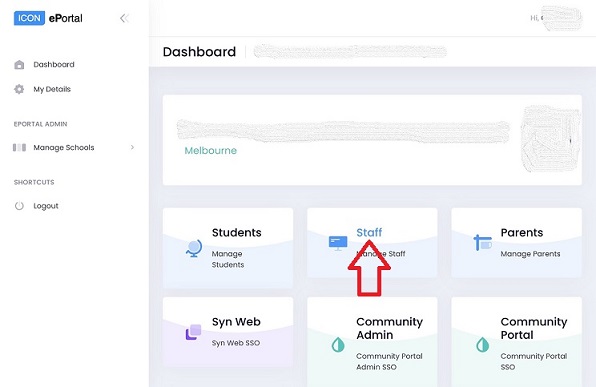
Click the Staff icon.
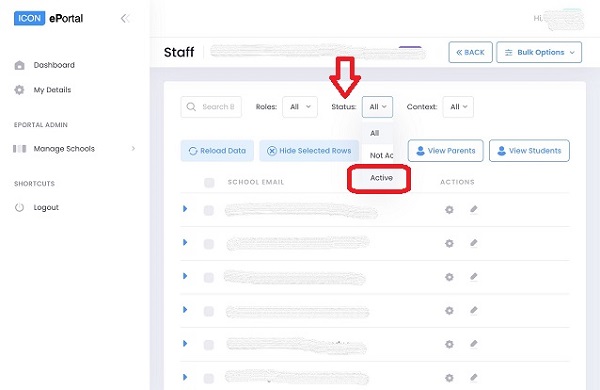
Once the Staff List opens, click the Status dropdown and select the Active option.
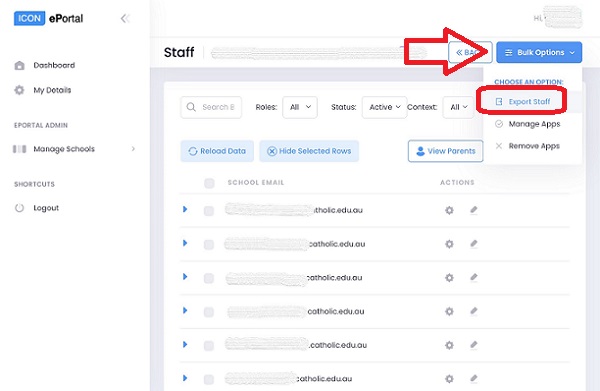
Once the Staff List refreshes, click the blue Bulk Options button (top-right).
Then choose the Export Staff option.
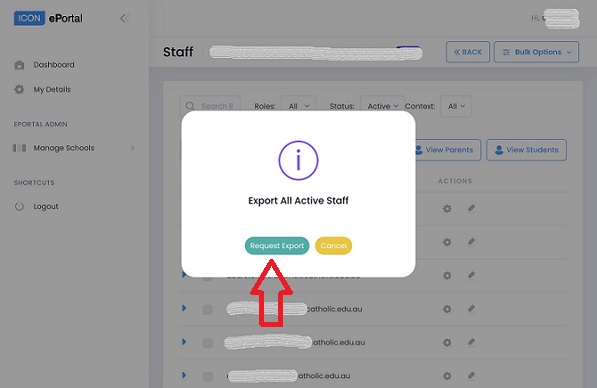
The Export All Active Staff dialog will appear. Click the green Request Export button.
Click Finish button to complete the process.
The exported CSV file should save to your Downloads folder.
View the step-by-step guide for Uploading Staff List into BEAMS.