
Behaviour Engagement and Monitoring System - BEAMS
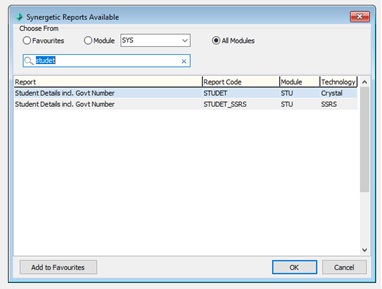
From the main menu, navigate to the Maintenance section and select System Crystal Reports Available. This will open a window listing available reports.
In the Synergetic Reports Available window, check the All Modules box to display all available reports.
Search for “STUDET” and select the Student Details incl. Government Student Number report from the list.
Click OK to continue.
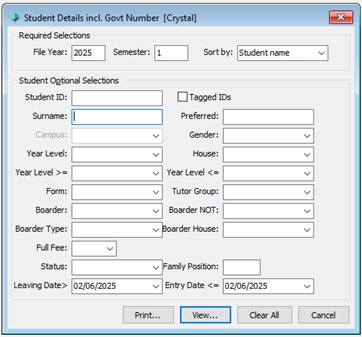
This will open the report generation window. Keep the default settings and choose View... to generate the report preview.
In the report preview window, click the Export icon.

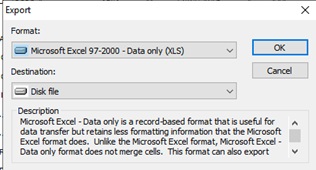
In the Format section, select Microsoft Excel 97-2000 Data Only (XLS) from the dropdown menu.
In the Destination Section, choose Disk File.
Click OK to continue.
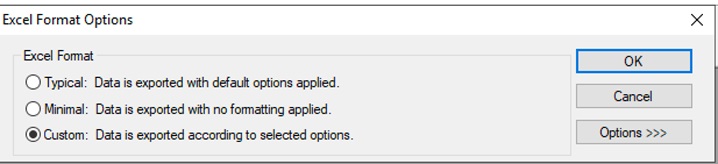
The Excel Format Options window will appear. Select Custom: Data is exported according to selected options.
Click OK to continue.
Choose a location on your computer to save the exported file.
Enter a name for the file and click Save.
View the step-by-step guide for Uploading Student List into BEAMS.